.svg)
You can scan either a physical copy of a passport, or a photo of the passport / on screen in an email or ATS.
Step One
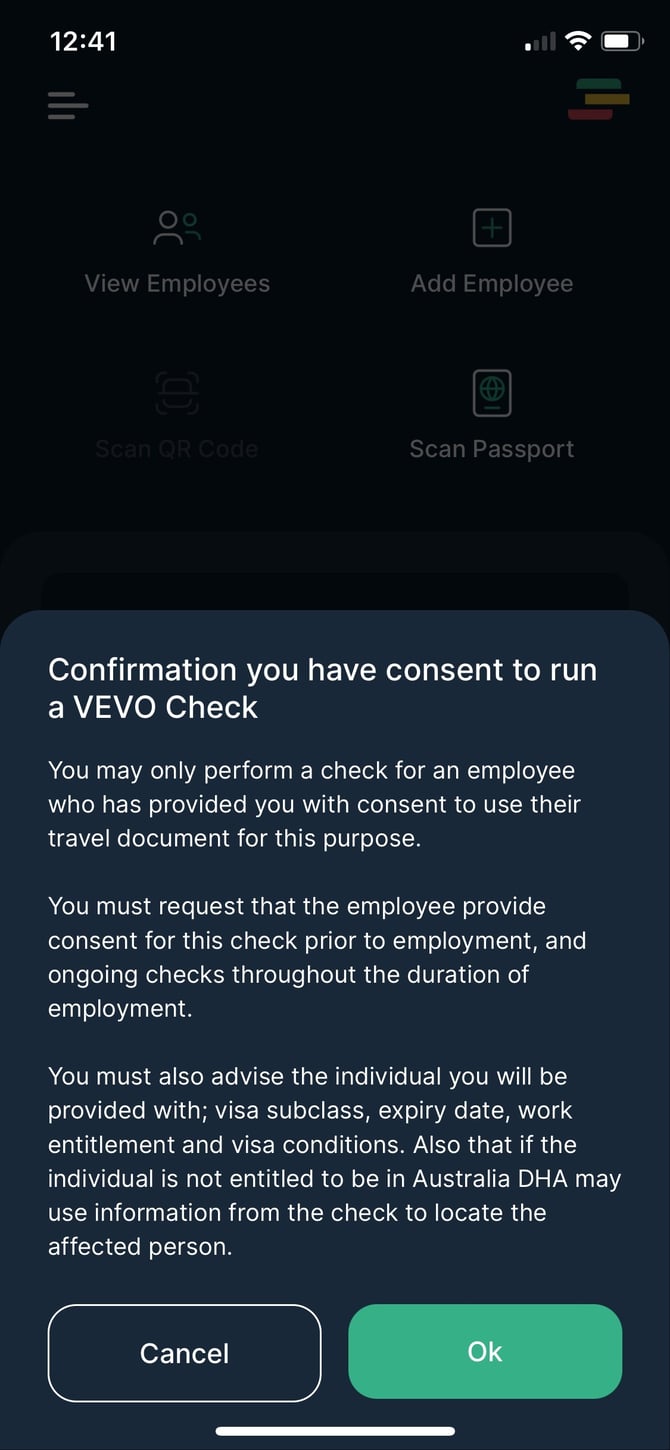
Click Scan Passport to scan the biodata page on the employee’s passport. Confirm that you have permission from the employee to perform a VEVO check and then select OK to scan.
|
You can use either a colour or black and white photocopy of the page. |
Step Two
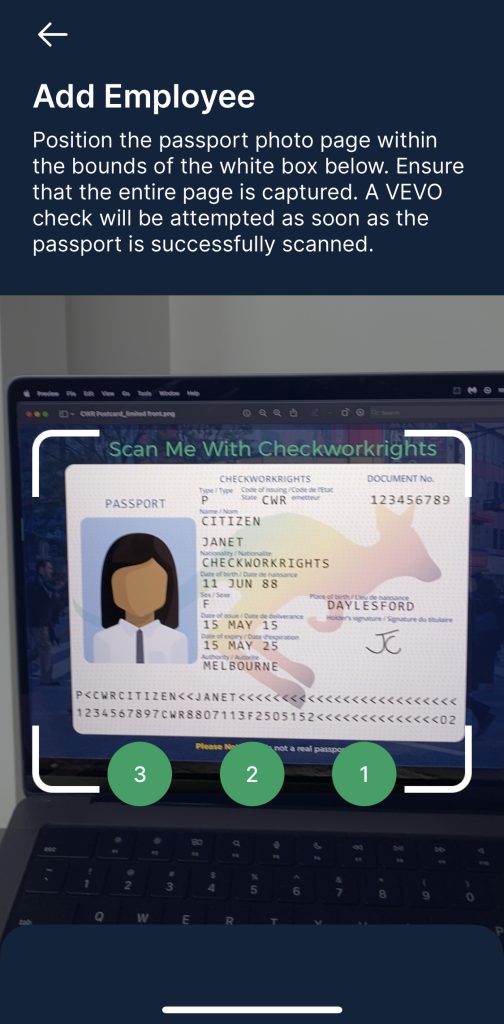
Scan the passport by positioning the passport photos page within the bounds of the white box on the screen. Make sure you capture the entire passport page including the machine readable zone (MRZ) at the bottom - this is the name and code at the bottom of the document.
Finish
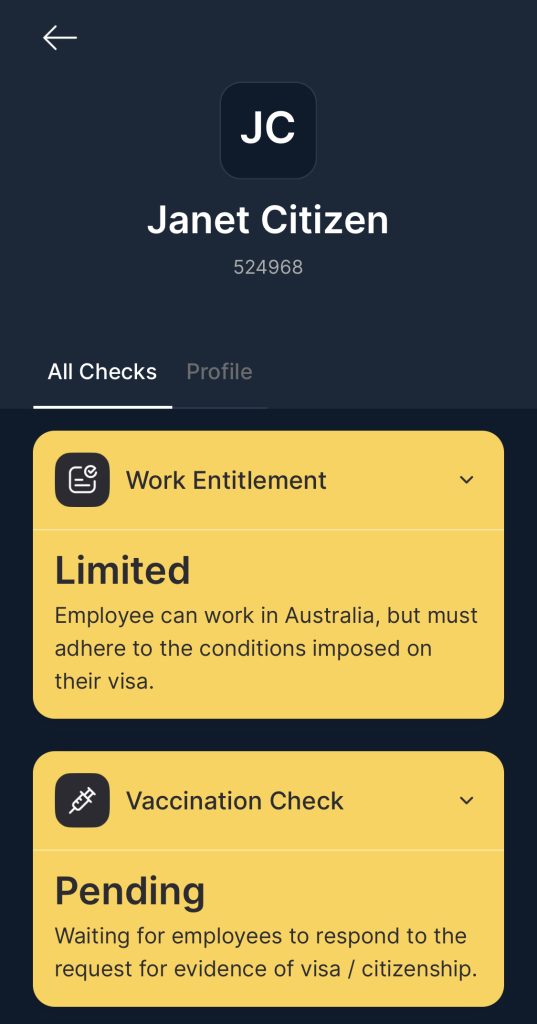
The individual will automatically be added to the organisations employee list, and their result should be shown like the image below.
Understanding the Results
Green - The person has unlimited work rights
Yellow - The person has limited work rights. Please check the conditions and limitations for further information.
Red - The person has no work rights. Please check the messages to understand whether the person’s visa has been cancelled or has expired.